Good evening, everyone!
It’s been a semi productive day in a non-coding kind of way. Any time the girlfriend is around, I feel like it’s more real life productivity, as compared to sitting at the computer getting coding practice and work done. It’s not a bad thing because there are often days where I forget how the outside world looks and feels.
I’ve been applying for jobs recently, and although I feel like i should be furthering my knowledge in all things PHP and WordPress, I’ve decided I may need a little more practice with JavaScript. Don’t get me wrong. I’m not too shabby. I think my being great at math when I was younger is really helping me think through the OOP type languages, but that could just be me convincing myself of such things. In any case, if I were in an interview where I had to answer a bunch of JS questions, I may stumble over my words and thoughts a little bit. So here goes…
Today’s Day and Time Clock!
The first project I found is to create a clock which displays today’s day and time. In my case, I wanted to make it update in real time, but that’s not too big a hurdle.
The Skeleton and Make-UP
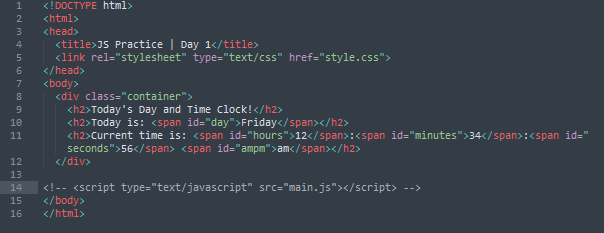
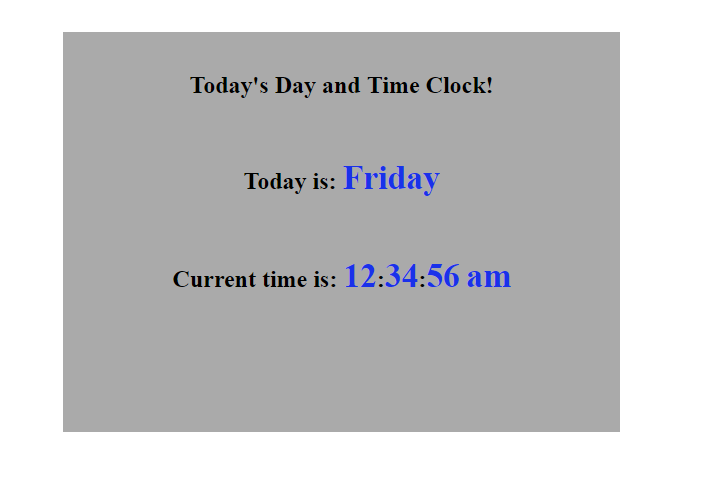
Before I start any of the JavaScript coding (though, it’s already running in my head), I wanted to set up a basic HTML and CSS site to display the information. I set up a container div, a few level 2 header tags, and some span tags around key elements. Then I style this with some basic CSS> Nothing pretty, just get it up there. I color the container to differentiate it from the background, set the sides margins to auto and make the span text bigger and blue. Why blue? Because that’s what came up for my random hexacolor sequence.
Start the Clock!
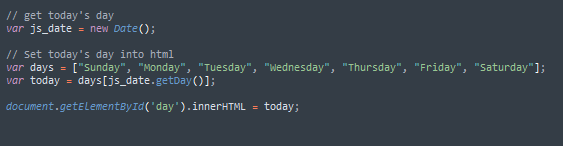
After you get your basic content/styling out, you start on making your clock function. In the first case, I went for the days because it seemed like easiest. Using the Date() function in JavaScript is pretty easy, so really all you’re doing here is creating a variable and setting it to today’s Date() (var js_date). From here, I like to get the day from that date. Truth by told, I console.log everything, because I really like to see with what I’m working. So, at this point I have two lines of code and two console.log’s.
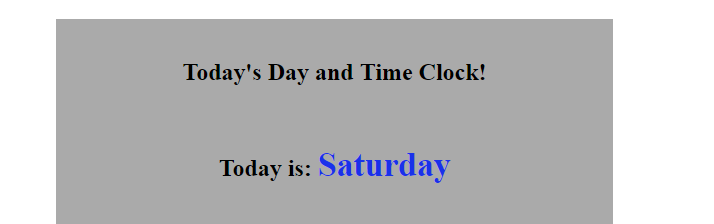
Today is Saturday, so my .getDay() function is returning a 6. What you want to do from here is create an array of the days of the week (var days). You can normally Google this and copy/paste, but I actually wrote out the code (#proudmoment). With this array in place, you want to use the number you’re getting back from the .getDay() function to pull the correct day from the array. My line was… var today = days[js_date.getDay()];… today is the new variable, days is the array, and js_date.getDay() is the function to get the number of the day. Alternately, you can save this to a variable, but why waste the step.
From here, you target the span tag’s id wrapped around the day and change the text to your new value of today. Voila. First part is done.
Get the Time
In an interest to save time, I’m going to *try* to keep things short, as this part is a little easier, but can be challenging depending on how picky you are. Now that you have the day changing to today’s day, it’s time to get the clock to change to the current time. This process is similar to the last.
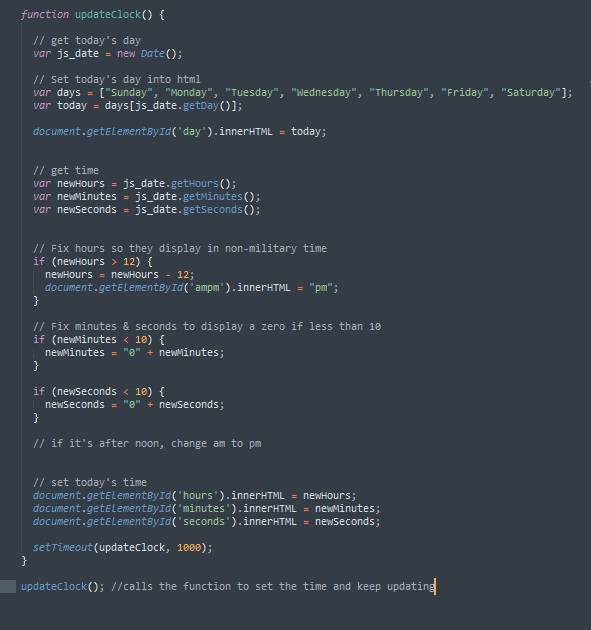
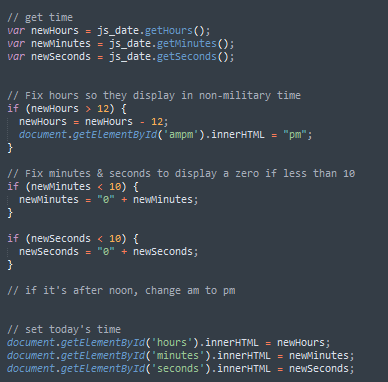
First, you’re going to want to get the current hours, minutes, and seconds and apply them to separate variables (var newHours, newMinutes, newSeconds). If you really wanted, you could apply these variables to the inner texts of the spans in your HTML and call it good. Perfectly acceptable. Honestly, I don’t think you would even have to save the new times to variables, but I like to, because I’m a little pickier for my formatting.
What I mean is, I don’t really like military time. Right now it’s evening, so my time is showing 18:##:## vs 6:##:##. Also, my “am” still says, “am”. We can fix both of these things pretty quickly with an IF statement. If (newHours > 12) then newHours = newHours -12. All this is saying is, if the current time is past noon, then subtract 12 hours from that time. This till give you the 1 to 12 effect vs military time. Within that same IF statement, I like to add the line to change the inner text of the “am” span to change to pm, so we’ll know it’s not 6 in the morning.
The other thing I want to change is when the seconds are in single digits, it only displays one number (i.e. 9) instead of two (i.e. 09), so let’s fix this with another IF statement. IF (newSeconds < 10) then newMinutes = “0” + newMinutes. All this is doing is concatenating a zero to the beginning of the digit, so it displays correctly. While you’re at it, you can do this same kind of thing for the minutes.
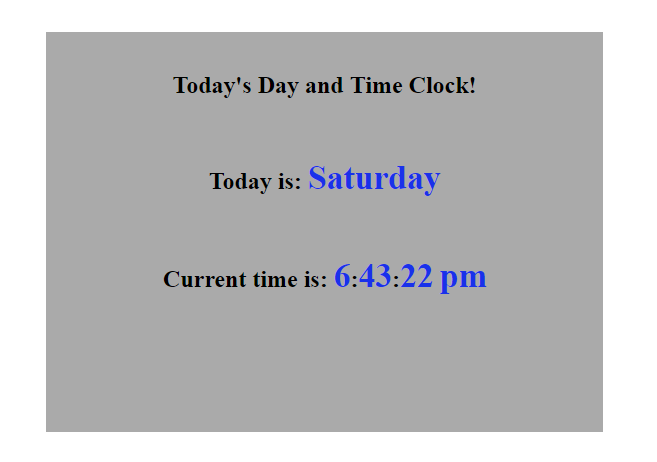
The only thing left to do is to change the inner text of the spans and you’re clock is done!
Final Touch
What time is it? Ten minutes ago?
One last thing I wanted to do was to make the clock updated repeatedly to show the real current time vs whatever time it was when you loaded the page. To do this, you have to use the setTimeout() function. Your parameters will be the function you’re calling and the interval in milliseconds: setTimeout(updateClock, 1000). Because you’re calling a function, you also have to wrap you code (and the setTimeout) in a function itself and call it externally. Calling the function will start it and it will run all the code, update the clock, and then go back and run the code again because you’re calling the function again every second thanks to setTimeout().